Guide
The basics of using Setlist Metronome on a gig night, from a fresh install to a Bluetooth pedal under your foot.
1. Add your songs
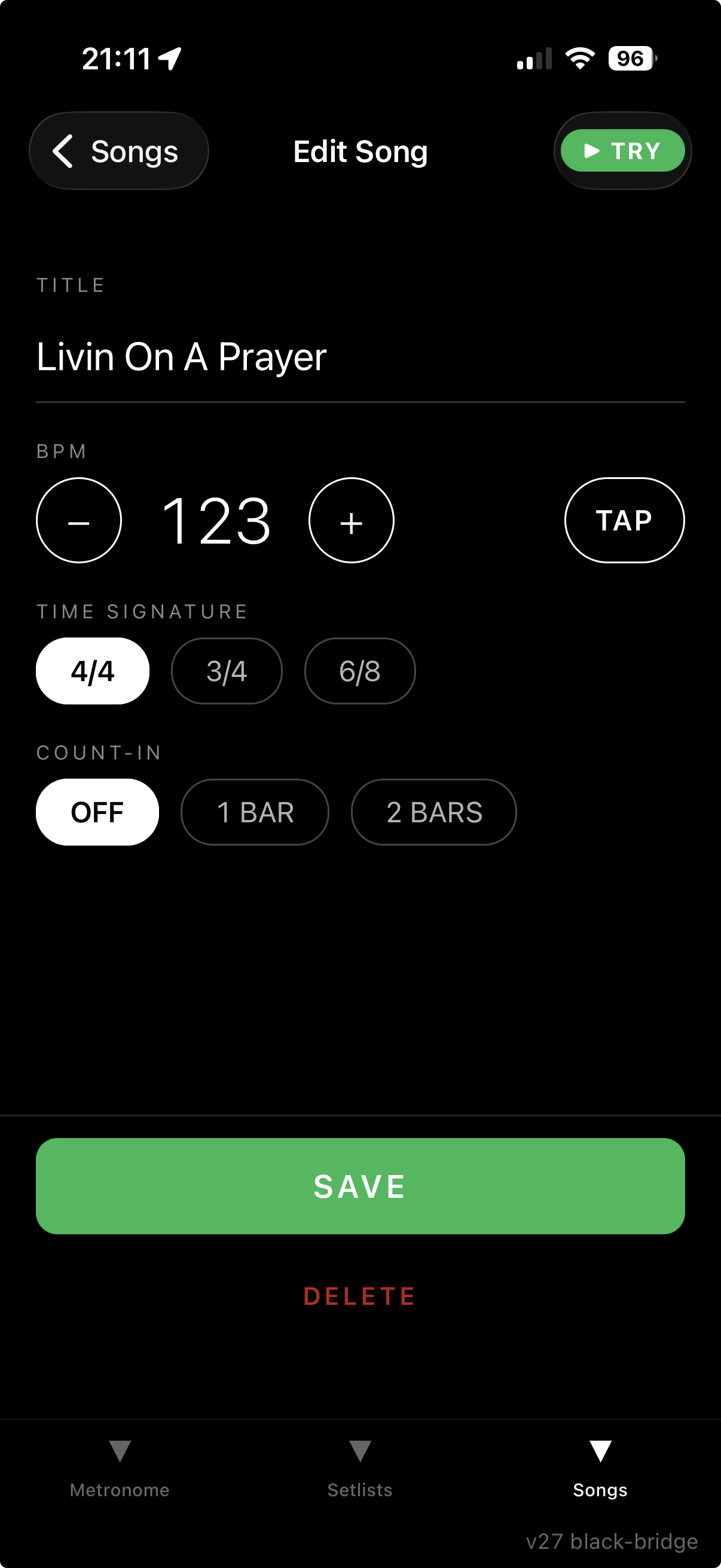
Open the Songs tab and tap the green + button. Each song stores:
- Title — whatever you call it on stage.
- BPM — set it with the + and − buttons or tap along with TAP. Long-press +/− to bump by 5 at a time.
- Time signature — 4/4, 3/4, or 6/8.
- Count-in — OFF, 1 bar, or 2 bars. Useful for songs that begin on a fill or a stop.
Tap the green ▶ TRY button at the top to hear the click at the current tempo before saving. Songs can be edited at any time. The library is shared across all your setlists, so each song only needs to be entered once.
2. Build a setlist
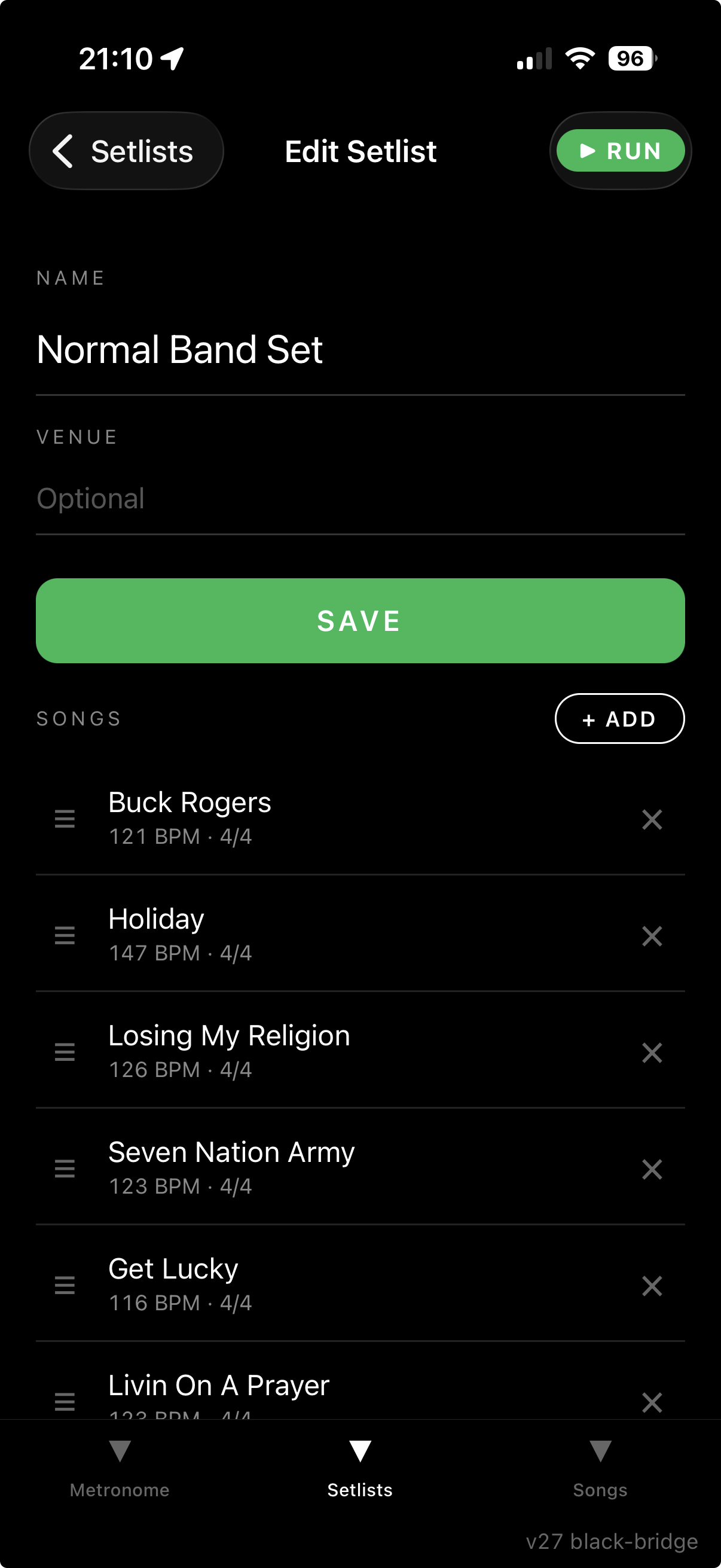
In the Setlists tab, tap the green + button to create a new setlist. Give it a name (e.g. Rock Set, Wedding Set) and an optional Venue field for the gig details.
Tap + ADD to pull songs in from your library, then drag the handle on the left of any row to reorder. The × removes a song from the setlist (it stays in your library).
Back on the setlists list, each row has a COPY action that duplicates the entire setlist — useful for making a stripped-back version of an existing set without rebuilding it from scratch.
3. Run the gig
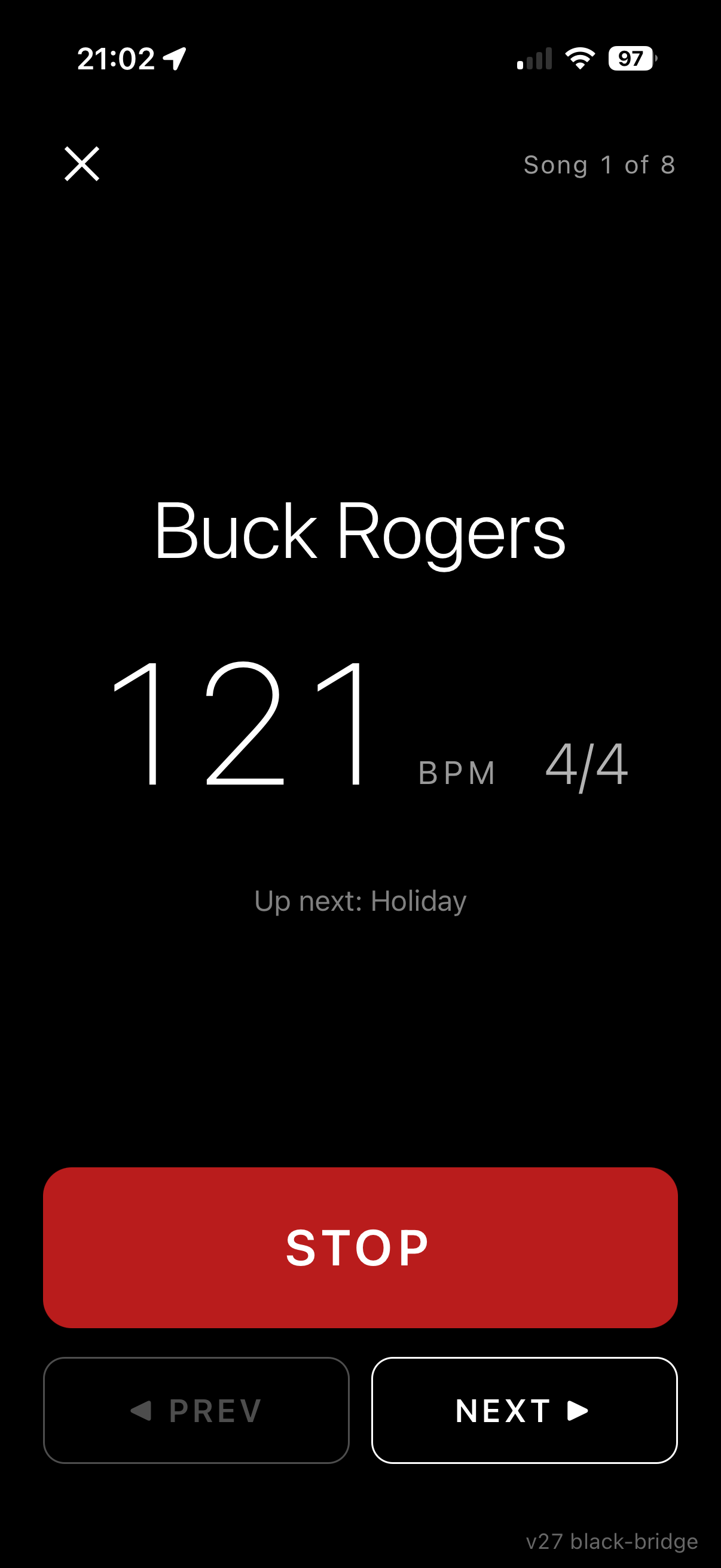
Open the setlist you want to play and tap the green ▶ RUN button at the top. You’ll see the current song’s title, BPM, and time signature in big, glanceable type, with Up next below and Song N of total at the top.
- START / STOP plays the click for the current song. The screen flashes white on every beat, so the click is visible as well as audible.
- PREV / NEXT advances through the setlist. Tempo and time signature follow automatically.
- If the next song has no count-in, the click keeps running and just changes tempo when you tap NEXT — no stopping and starting between every song. Songs with a count-in stop the click so you can tap START when the band is ready.
- The screen stays awake the whole time you’re in Run mode, including between songs.
4. Pair a Bluetooth pedal
Most page-turner pedals (PageFlip, AirTurn, Donner, and similar) appear to your phone as a Bluetooth keyboard. Pair the pedal in your phone’s Bluetooth settings as you would any other keyboard.
Setlist Metronome expects the pedal in Mode 5 — Space/Enter, sometimes labelled Keyboard 1. In that mode:
- Left pedal sends Space → previous song
- Right pedal sends Enter → next song
The mapping is fixed for now. A configurable mapping screen is planned for a future update.
5. Tips for stage use
- Use wired audio for the click. Bluetooth headphones add latency, so the click will arrive slightly late through them. For accurate timing, send the click through a wired connection — the phone’s headphone-jack adapter or a USB-C audio out — into your monitor mix. The phone’s built-in speaker is also accurate.
- Use the count-in. For songs that begin on a fill or a stop, set a one- or two-bar count-in so the band has a known starting beat.
- Keep the phone visible. The app holds the screen awake while you’re in Run mode, but if you manually lock the phone, the click stops.
- Test the pedal in soundcheck. Before the first set, start a test setlist and tap the pedal a few times to confirm it advances. Bluetooth can drop occasionally; better to find that out during soundcheck than mid-song.